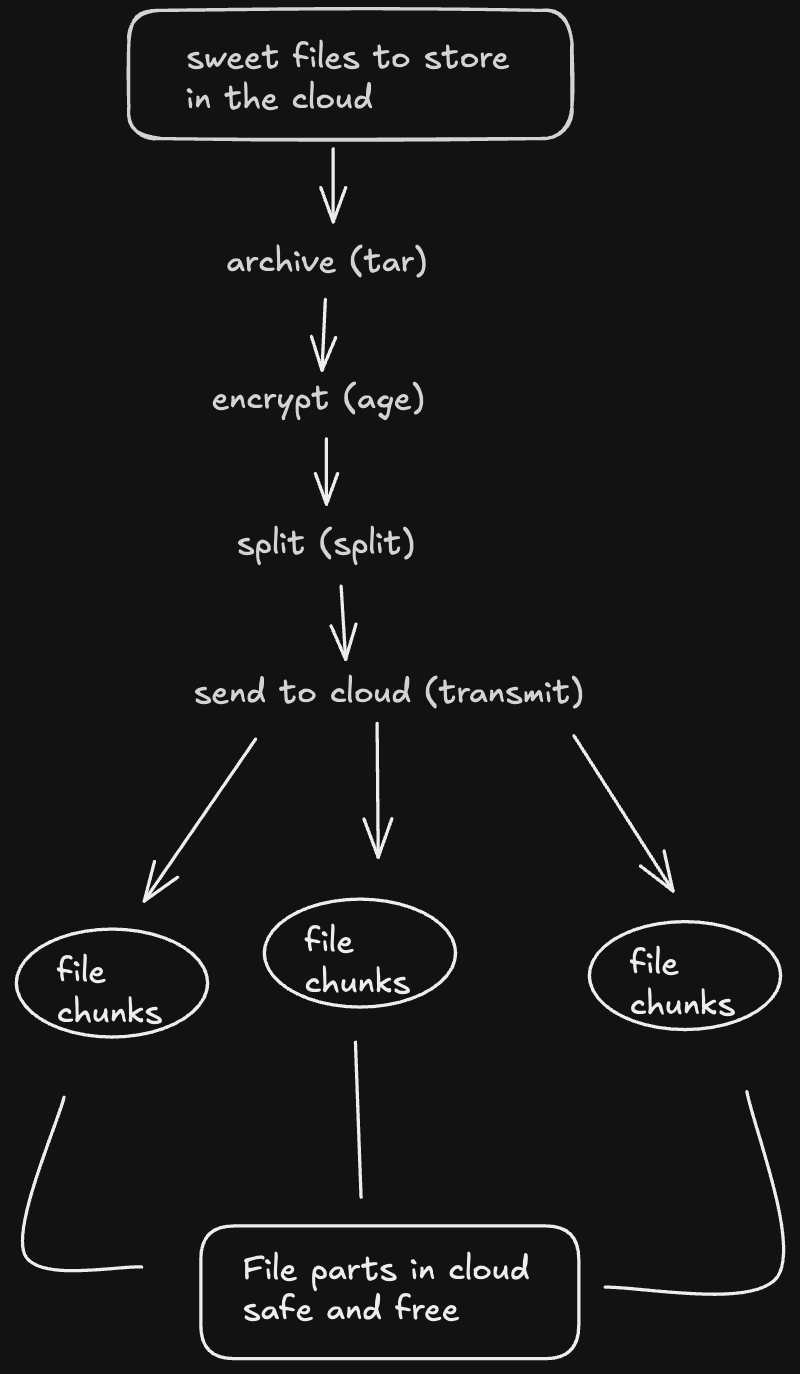
This is how to store files securely on free cloud storage providers and get the most of their provides services. using encrypted and file chunking when necessary.
Cloud Storage
there are many free cloud storage providers and the key is to get the most of all of them
- google cloud; 15gb per gmail account.
- box.com; 10gb per account
- microsoft onedrive; 5gb per account.
you can create as many accounts as you would like. for every gmail you create you get 30gb of storage. there are many other services but these are the ones i use
Centralized Access
in order to have all the services in a centralized place. i recommend Transmit 5 that is a mac app. you can log into all the accounts and have access to all the files in one place.
Archiving
if your intended file if too big or if it is a directory wit a lot of files and folders. it is good to archive it. i will use `tar` command.
Encryption
before uploading files to the these insecure services. you have to encrypt them. my go to way of encryption them is age command. it is a cli command and not a gui app which some people may be afraid of but it is what it is.
there are two ways of encryption with age
- with a private and public key
- with a passphrase
with keys
keep this file secure and also save the public key that will be printed on the terminal. you will use it to encrypt the file.
the file we have created can be decrypted simply by;
simple as that
with passphrase
this doesn't require a key to be generated and managed. simple use a passphrase you can remember.
to decrypt the file it is as simple as
File Splitting
sometimes you might need to split very large files if you want to store them in separate cloud providers. but another reason to split files could be the file upload limit many cloud providers implement.
for separating i use the `split` command that works both on linux and macos. for windows you are on your own lol. (you can use WSL maybe)
you should split after encrypting
before splitting a file you might want to archive it. i don't why but it feels more right and safe, it's just a feeling there is no proof or reason you might want to archive it. split command is pretty simple.
Or
the suffix "M" is for megabytes. there are several options for it
- K for kilobytes
- M for megabytes
- G for gigabytes
- if nothing it added it will be bytes
after splitting it will create the files with the names starting with `prefix` then will add `aa` and so on (`aa`, `ab`, `ac` ...)
Conclusion
yeah thats all i got. then you can upload them and abuse the capitalist conglomerates that all the files you could ever upload won't even feel like a spec of dust in their ginormous databases.